Use Harbor to Avoid Docker Hub Rate Limits
In November, Docker implemented new rate limits for anonymous and free use of Docker Hub. They added two new limits:
- Anonymous: 100 container image requests / six hours
- Free Authenticated: 200 container image requests / six hours
If you find yourself operating above these limits, you have a few options. You can sign up for a Docker Pro or Team account, or you can reduce image request frequency below thresholds.
But there is a third option. You can host your own container registry and mirror the images from Docker Hub.
Use Harbor as a Docker Hub Mirror
“Harbor is an open source registry that secures artifacts with policies and role-based access control, ensures images are scanned and free from vulnerabilities, and signs images as trusted.”
The Harbor documentation provides several options for installation and configuration. I used Harbor on Kubernetes via Helm, but pick an option that works for you.
Once we have a copy of Harbor deployed we are going to make use of a feature called “Replication” to create a mirror of images in Docker Hub. The documentation has full details on the process.
- Configure a Container Registry
- Create a Replication Rule
- Trigger the Initial Replication
In the walkthrough below, I’m going to set-up Harbor to replicate all images from my own Docker Hub account.
Configure a Container Registry
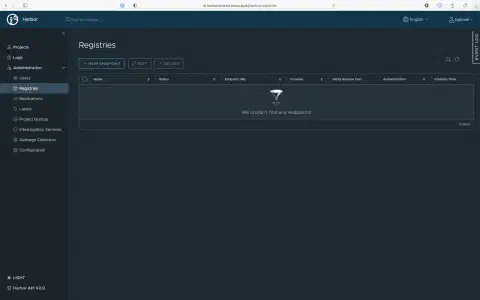
Harbor comes with support for Docker Hub as a provider registry by default. Head on over to the “Registries” tab on the left hand navigation menu.
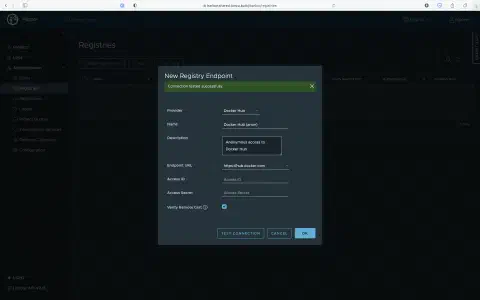
Give your external registry a name and provide any credentials you want to use. I’m replicating my public images so I leave the credentials blank.
Create a Replication Rule
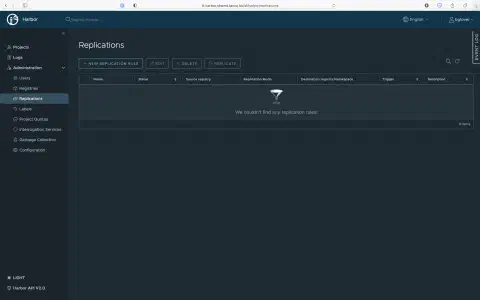
Now that you have your external repository configured, you need to set up a Replication Rule. Click on the “Replications” tab on the left hand navigation menu.
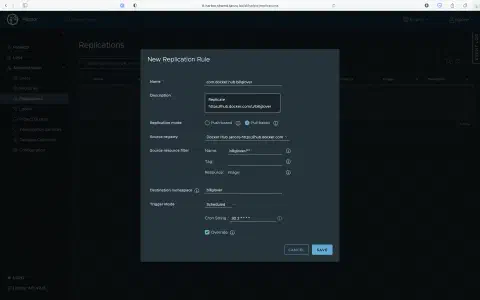
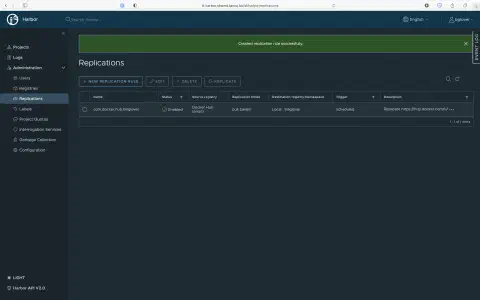
You want to set-up a “Pull Based” replication rule as you are pulling images from Docker Hub. Use the Source Filter to specify which images you want to replicate. In this example I use billglover/** to replicate all public images in my Docker Hub account.
You can use manual replication, but I would recommend scheduled replication. This keeps your images up to date. Note: the crontab syntax here uses 6 components and not the 5 you find in most crontab generators. The sixth component is the year. In this example I use 30 2 * * * * to trigger replication at 2:30 daily.
You should now have a new Replication Rule listed.
Trigger the Initial Replication
Trigger the initial replication to confirm things are working. Select the Replication Rule and then hit the “Replicate” at the top of the list.
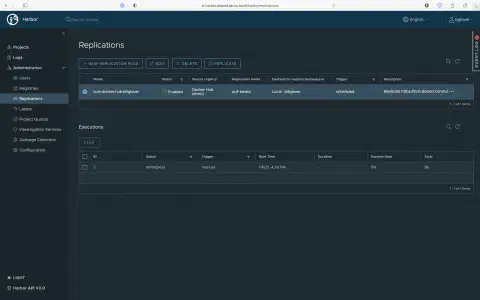
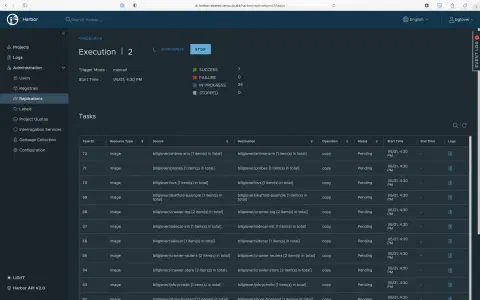
You’ll see a new Replication Execution listed as the initial replication takes place. You can click on it to view progress. This took a couple of minutes for me, but this is dependent on the size and number of images you are replicating.
Use your Mirrored Images
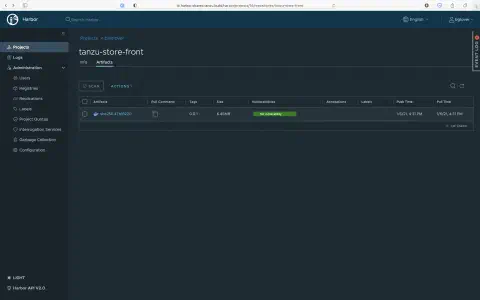
When replication is complete, you can use your new image repository in Kubernetes manifests.
We’ve seen how we can use replication to work around the Docker Hub rate limits. But there are other reasons that a replica repository might be a good idea.
- Bring images inside the firewall and avoid granting internet access to cluster hosts.
- Enforce role based access controls linked to your identity provider
- Integrate image scanning using pluggable security tools
Harbor is our container registry of choice at VMware Tanzu. If you want to contribute, please see the Community Page.